Operational Troubleshooting
Note
This page goes through common encountered problems during operation/use and how to deal with these.For installation time problems, please visit Installation troubleshooting
For release-specific bugs and their workarounds, please refer to Hotfixes / Known issues
Basic diagnostics
TrinityX comes with a diagnosis tool which will check the required services. To generate the result below run the command on the CLI: trix-diag
# trinity_diagnosis
Trinity Core
        chronyd: active (running) since Tue 2023-10-17 20:45:29 CEST; 17h ago
        named: active (running) since Tue 2023-10-17 20:55:07 CEST; 17h ago
        dhcpd: active (running) since Tue 2023-10-17 20:49:52 CEST; 17h ago
        mariadb: active (running) since Tue 2023-10-17 20:46:20 CEST; 17h ago
        nfs-server: active (exited) since Tue 2023-10-17 20:44:38 CEST; 17h ago
        nginx: active (running) since Tue 2023-10-17 20:49:52 CEST; 17h ago


Luna
        luna2-daemon: active (running) since Tue 2023-10-17 20:49:51 CEST; 17h ago
        aria2c: active (running) since Wed 2023-10-18 13:50:51 CEST; 13min ago


LDAP
        slapd: active (running) since Tue 2023-10-17 20:45:31 CEST; 17h ago
        sssd: active (running) since Tue 2023-10-17 20:46:17 CEST; 17h ago


Slurm
        slurmctld: active (running) since Tue 2023-10-17 20:55:13 CEST; 17h ago


Monitoring core
        influxdb: active (running) since Tue 2023-10-17 20:54:32 CEST; 17h ago
        telegraf: active (running) since Tue 2023-10-17 20:55:17 CEST; 17h ago
        grafana-server: active (running) since Tue 2023-10-17 20:55:38 CEST; 17h ago
        sensu-server: active (running) since Tue 2023-10-17 20:55:31 CEST; 17h ago
        sensu-api: active (running) since Tue 2023-10-17 20:55:32 CEST; 17h ago
        rabbitmq-server: active (running) since Wed 2023-10-18 13:31:14 CEST; 33min ago


Trinity OOD
        httpd: active (running) since Tue 2023-10-17 20:55:16 CEST; 17h ago
Other troubleshooting utilities
Infiniband diagnostics
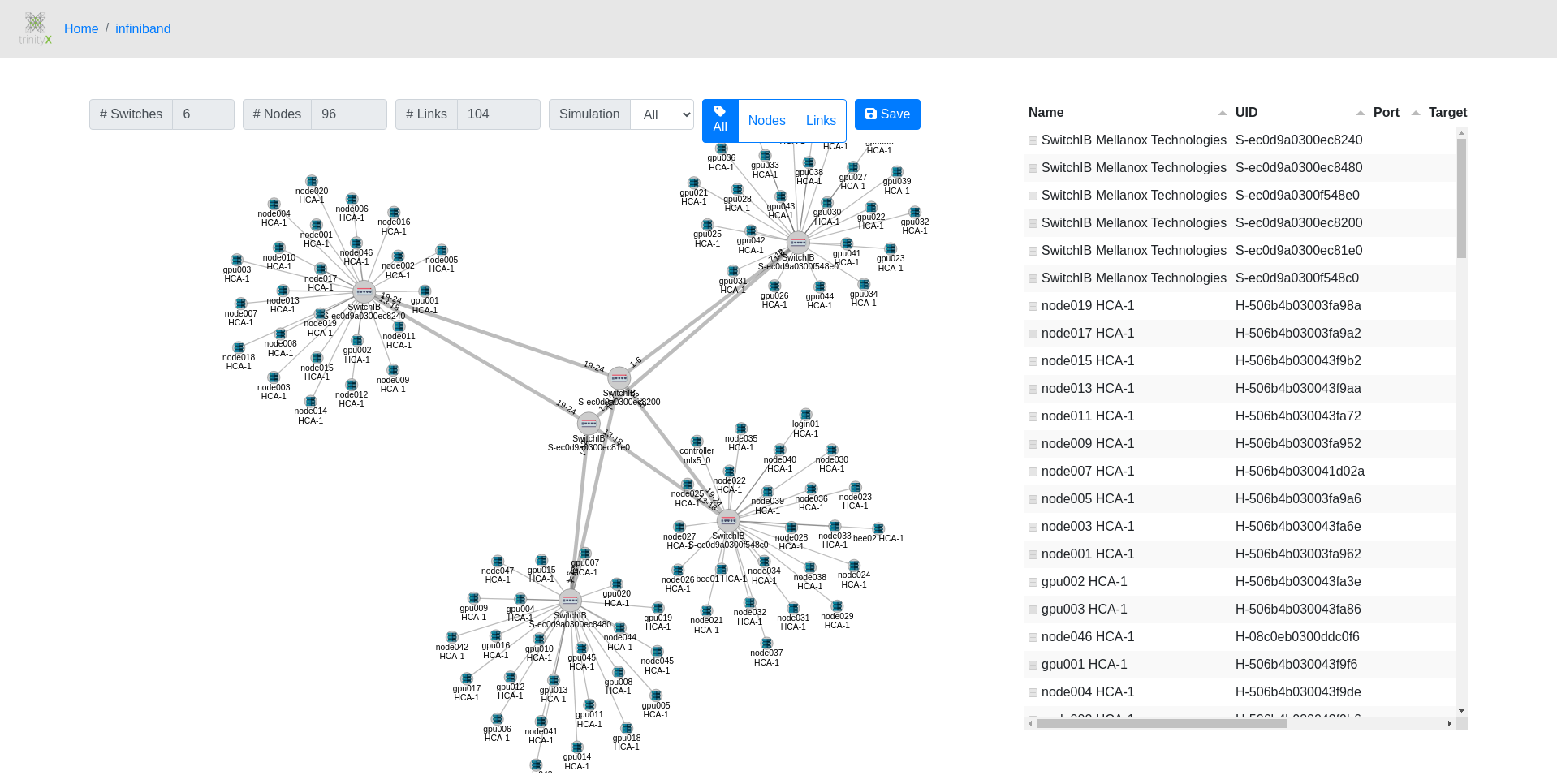
Bundled with TrinityX comes a graphical diagnostic application that helps troubleshooting Infiniband issues. It show the topology and highlights troubled links, including the host and port where the problems are seen.
Persistent alert history
Every alert AlertX raises and resolves is recorded in a persistent database, giving a searchable history of what happened on the cluster over time. This is a useful starting point when investigating an incident after the fact: instead of relying on Alertmanager's live view, which only reflects the current state, you can look back to see when a node or service first started alerting, how often it recurred and when it recovered.
The history is presented in Grafana through the Alert history dashboard. See AlertX → Alert history for what is stored and how long it is kept.
Centralized syslog
Syslog is configured to collect all the logs from the services on the controller(s) and the nodes. Logs are commonly used to troubleshoot problems and are typically found in /var/log:
| component | location |
|---|---|
| services | /var/log/messages or their respective location |
| prometheus | /var/log/prometheus/* |
| luna daemon, utils and cli | /var/log/luna/* |
| nodes | /var/log/cluster-messages/* |
for the services configured by TrinityX, rotates are setup to prevent /var/log from filling up.
Problems encountered using TrinityX
Nodes cannot boot
during the initial (i)PXE request, zero bytes are returned. Follow the following steps on the controller(s):
- Ensure there are at least two files in /var/lib/tftpboot with a size, i.e. not zero bytes:
- luna_ipxe.efi
- luna_undionly.kpxe
- Check the contents of /etc/dhcp/dhcpd.conf. there should be a block that looks like depicted below.
- Verify dhcpd and/or dhcpd6 is running. dhcpd6 is normally only needed to boot using IPv6
- Check the log /var/log/luna/luna2-daemon.log for any (suspicious) errors or warnings
- Verify whether the firewall is blocking traffic
- Try an alternative iPXE kernel
Example dhcpd.conf block:
subnet 10.141.0.0 netmask 255.255.0.0 {
    max-lease-time 28800;
    if exists user-class and option user-class = "iPXE" {
        filename "http://10.141.255.254:7050/boot";
    } else {
        if option client-architecture = 00:07 {
            filename "luna_ipxe.efi";
        } elsif option client-architecture = 00:0e {
        # OpenPower do not need binary to execute.
        # Petitboot will request for config
        } else {
            filename "luna_undionly.kpxe";
        }
    }
    next-server 10.141.255.254;
    range 10.141.10.0 10.141.255.253;
    option routers 10.141.255.254;
    option domain-name "cluster";
    ddns-domainname "cluster.";
    ddns-rev-domainname "in-addr.arpa.";
    update-static-leases on;
    option luna-id "lunaclient";
}
Firewall
If the controller and compute playbooks have completed, the dhcpd service is running but there is no boot possible, it could be that the firewall is not configured properly.
The default setup is that there is one public and one trusted interface in firewalld. If the group_vars/all.yml is not configured correctly, the interfaces are placed in public which is limited.
Misconfigured:
public (active)
  target: default
  icmp-block-inversion: no
  interfaces: ens192 ens224
  sources:
  services: cockpit dhcpv6-client ssh
  ports: 22/tcp 443/tcp 8080/tcp 3001/tcp 3000/tcp
  [...]
Correct:
public (active)
  target: default
  icmp-block-inversion: no
  interfaces: ens192
  sources:
  services: cockpit dhcpv6-client ssh
  ports: 22/tcp 443/tcp 8080/tcp 3001/tcp 3000/tcp
  [...]

trusted (active)
  target: ACCEPT
  icmp-block-inversion: no
  interfaces: ens224
The interface can be switched using firewall-cmd (where ens224 is the internal interface):
firewall-cmd --remove-interface ens224 --zone=public
firewall-cmd --add-interface ens224 --zone=trusted --permanent
firewall-cmd --reload
Alternative iPXE kernel
In some scenarios, the NIC firmware causes trouble. This will hinder iPXE booting by getting stuck at fetching the Luna boot splash screen or fetching the kernel.
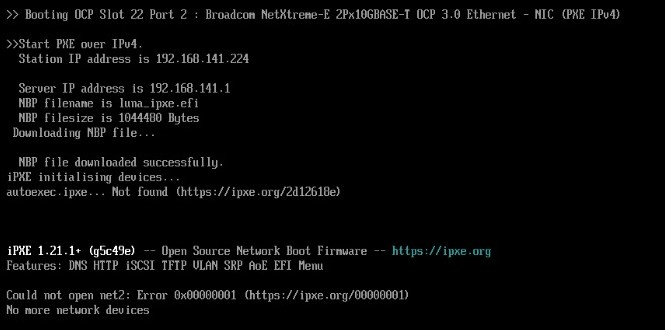

This may be caused by the default iPXE kernel utilizing the compiled-in drivers, not working optimally with the NIC. In this case, an alternative iPXE kernel can be tried, which utilizes the NIC's built-in driver.
# mv /var/lib/tftpboot/luna_ipxe.efi /var/lib/tftpboot/luna_ipxe.efi.backup
# wget https://boot.ipxe.org/x86_64-efi/snponly.efi -O /var/lib/tftpboot/luna_ipxe.efi
Then reboot the affected nodes. Note that this replaces the iPXE binary for the whole controller, so it affects every node.
The iPXE kernel can be toggled per group or per node through Luna, instead of replacing the TFTP binary globally. The ipxe_kernel setting accepts two values:
default— the standard iPXE kernel, using its compiled-in drivers;alternative— the iPXE kernel that uses the NIC's built-in driver.
Like other group settings it is inherited by the nodes, and a value set on a node overrides the group. Switch a group (and therefore its nodes) to the alternative kernel:
# luna group change compute --ipxe_kernel alternative
Or set it on a single node:
# luna node change node001 --ipxe_kernel alternative
The short option -x is equivalent to --ipxe_kernel. Set the value back to default to return to the standard kernel. Reboot the affected nodes for the change to take effect.
Open OnDemand shows an internal server error 500
Upon accessing the URL for OOD, the below error is encountered.
Internal Server Error
The server encountered an internal error or misconfiguration and was unable to complete your request.

Please contact the server administrator at root@localhost to inform them of the time this error occurred, and the actions you performed just before this error.

More information about this error may be available in the server error log.
Two main reasons:
- The external FQDN (trix_external_fqdn) setting in the group_vars/all.yml config file, used during installation is not resolvable by the controller itself. Make sure the controller can resolve its own FQDN by pointing the forwarder to your own DNS server (that can resolve the external FQDN) or add an entry in /etc/hosts to match. Please refer to Open OnDemand section.
- The certificate generated for the controller contains the FQDN as a valid host. The FQDN (trix_external_fqdn) is typically set in the group_vars/all.yml config file during installation time. When this name does not match with how the external IP of the controller is resolved, the certificate is not valid. Please refer to Generating alternative certificates for OpenOndemand, OOD for a howto to generate an alternative certificate.
Luna Graphical applications show Internal Server Error
Due to changes on the luna daemon side, the graphical luna applications might render an Internal Server Error. This is most likely caused by updating luna, but not included the ood-apps. To solve this issue, update the ood-apps:
ansible-playbook controller.yml --tags=ood-apps,luna
Please also look at Updating using the cloned TrinityX branch.
Slurm Graphical Configurator application shows 'list index out of range' message
Starting the Slurm Graphical Configurator results in a white screen with the text
{"message":"list index out of range"}.
To solve this issue, update the config-manager and restart Open OnDemand services:
ansible-playbook controller.yml --tags=config-manager
systemctl restart htcacheclean httpd
After logging into the portal again, the application works as intended.
Please also look at Updating using the cloned TrinityX branch
Error 500 on graphical nodes and groups applications after updating luna
For TrinityX 15.1 some new parameters (_meta) were added that were not backwards compatible, causing trouble for the graphical luna applications after updating luna. Please update the ood-apps as well to be inline again with these new parameters.
ansible-playbook controller.yml --tags=luna,ood-apps
systemctl restart htcacheclean httpd
OpenLDAP update breaks backend
TrinityX stores the ldap configuration and the database backend in different locations to aid in easy backup strategies. By default the configuration is in /trinity/local/etc/openldap/slapd.d, while the database is in /trinity/local/var/lib/ldap. During RPM updates for openldap, the symlink in /etc/openldap/slapd.d may be overwritten, causing problems.
The following steps restore openldap functionality:
- systemctl stop openldap
- mv /etc/openldap/slapd.d to e.g. /etc/openldap/slapd.d-org if this is not the correct symlink
- ln -s /trinity/local/etc/openldap/slapd.d /etc/openldap/slapd.d
- systemctl start openldap
Note: For HA installations, the paths are typically in /trinity/ha/etc/openldap/slapd.d and /trinity/ha/var/lib/ldap
named (BIND) fails to start: option 'dnssec-enable' no longer exists
After a luna config change, a daemon restart or an OS/BIND upgrade, the DNS service does
not come up. trix-diag (trinity_diagnosis) shows named as not running, and
systemctl status named / the journal report a configuration error:
named[12345]: /etc/named.conf:57: option 'dnssec-enable' no longer exists
named.service: Failed with result 'exit-code'.
(on some versions the wording is unknown option 'dnssec-enable').
TrinityX does not hand-edit /etc/named.conf; the luna daemon renders it from a
template. The legacy dnssec-enable directive is only written when the cluster-level
bind_legacy toggle is on. BIND 9.16 and newer (the default on RHEL/Rocky 9) removed
dnssec-enable entirely, so if it is present named refuses to start. DNSSEC responses
are served automatically on these versions and the directive is not needed. On older
BIND (9.11, RHEL/Rocky 8) the opposite holds: dnssec-enable yes; is still required to
turn DNSSEC on, so the legacy toggle must be set there.
The toggle and its companions are cluster-level luna settings:
| flag | meaning |
|---|---|
--bind_legacy |
emit the legacy dnssec-enable directive (only set on BIND ≤ 9.11) |
--dnssec_enable |
value of dnssec-enable; only written when bind_legacy is on |
--dnssec_validation |
value of dnssec-validation; skipped when dnssec_enable is no |
Modern BIND (9.16+, the common case). Clear the toggle so the legacy directive is
dropped. dnssec-enable is never written in non-legacy mode, so --dnssec_enable plays no
part here; DNSSEC validation is independent and can be set on its own if you want it explicit:
# luna cluster change --bind_legacy no
# luna cluster change --dnssec_validation yes      # optional, only if you want validation explicit
Older BIND (9.11) where DNSSEC is required. Here the directives are coupled — enable the legacy directive together with DNSSEC and its validation:
# luna cluster change --bind_legacy yes --dnssec_enable yes --dnssec_validation yes
On any cluster change the luna daemon re-renders /etc/named.conf and reloads and
restarts named automatically (a plain reload does not pick up option changes such as
dnssec-validation). The manual restart below is therefore only a fallback for when named
was left in a failed state, for example after a BIND upgrade:
# systemctl restart named
If in doubt, verify the generated config with named-checkconf before restarting.
AlertX has drained my nodes
AlertX drainer monitors the triggered alerts in prometheus and alert manager. When a node is affected by a NHC triggered rule, the node is drained to not participate in new scheduled jobs. This is intended and prevents possible bigger disasters where a faulty node could soup up and fail all jobs in the jobs queue. The best approach is to see what triggered the drain. Please have a look at the AlertX section for further troubleshooting.
Admin group change
After changing the admin group, i.e. GID change, the Luna graphical applications do not show up anymore or render problems regarding permissions.
In principle, the GID has to be reset for group membership of runtime files.
- Use the TrinityX stack to sort things out.
- Change the
admin_groupvariable ingroup_vars/all.ymlto your needs. - Run:
ansible-playbook controller.yml --tags=admin-change - Users already logged into OOD should use Help -> Restart Web Server in the portal
The Open OnDemand portal or Grafana page cannot be reached
The ports serving Open OnDemand/OOD, Grafana and Prometheus web ports are set to be closed by default and require a setting in the all.yml to be set to have these ports open, typically done at installation time. The values in all.yml representing these ports are:
firewall_open_ood: <true|false>
firewall_open_grafana: <true|false>
firewall_open_prometheus: <true|false>
and can be found in the firewall section of the configuration file.
After changing the settings, these can be put in action by running ansible-playbook controller.yml --tags=firewalld
from within the site directory. A manual port change/add using firewalld directly can be done as well.
Pacemaker reports error attaching the DRBD instance
In more details, pcs status would show a line similar to:
DRBD-trinityx start on <server> returned 'error' (failed to attach) ...
Please verify if the used disk for DRBD has been configured correctly by starting drbd manually and inspect:
systemctl start drbd
drbdadm status
systemctl stop drbd
When the above instructions return a 'diskless' configuration, please follow the DRBD relocation instructions to assign a working disk target.
See also: Hotfixes / Known issues · Installation troubleshooting